AI product photos and videos from your 3D model
One 3D product becomes lifestyle images, ad pictures and a short clip. Here is one bag, start to finish.
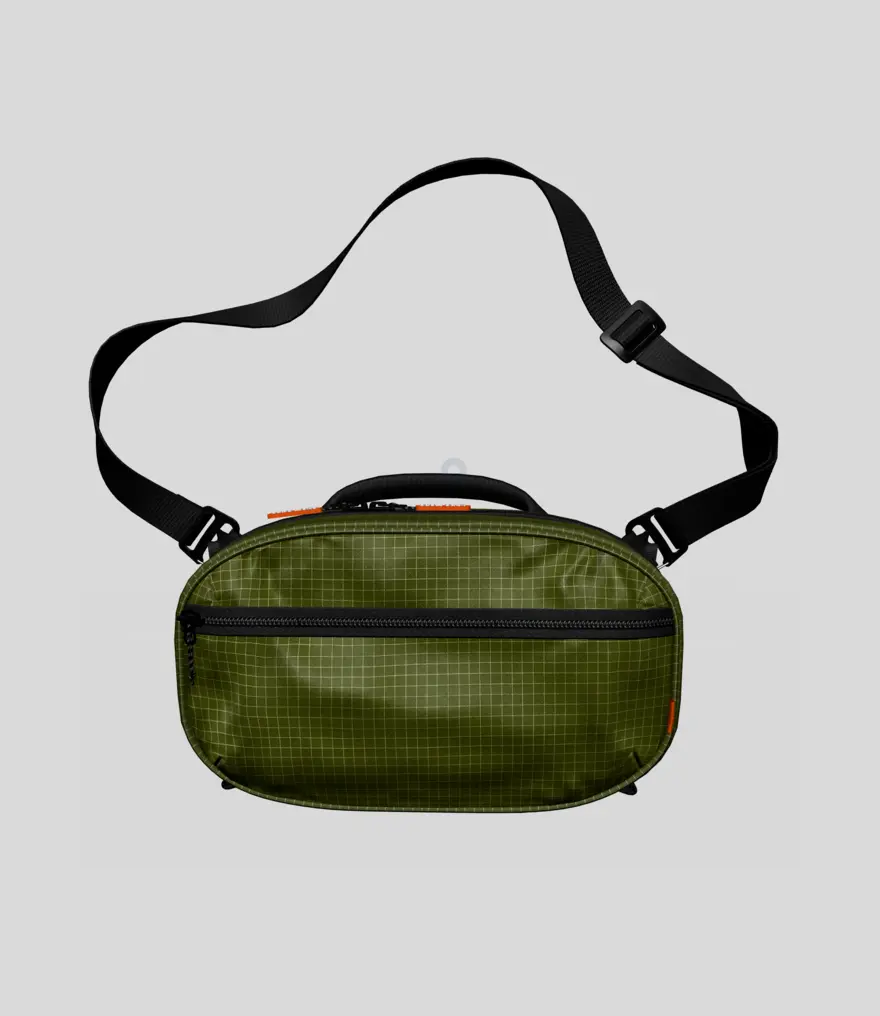
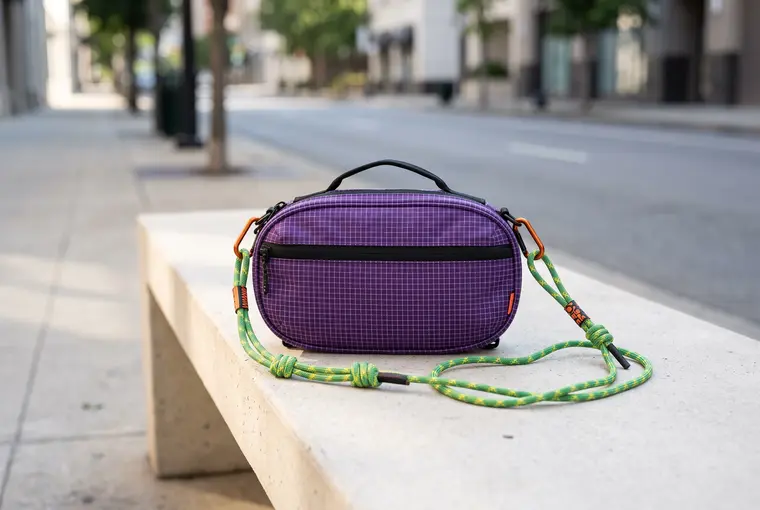
It starts with your 3D product
This is the Sling Bag from our home page. Each step below takes the 3D view, or a picture made from it, and makes the next one. Try the bag live
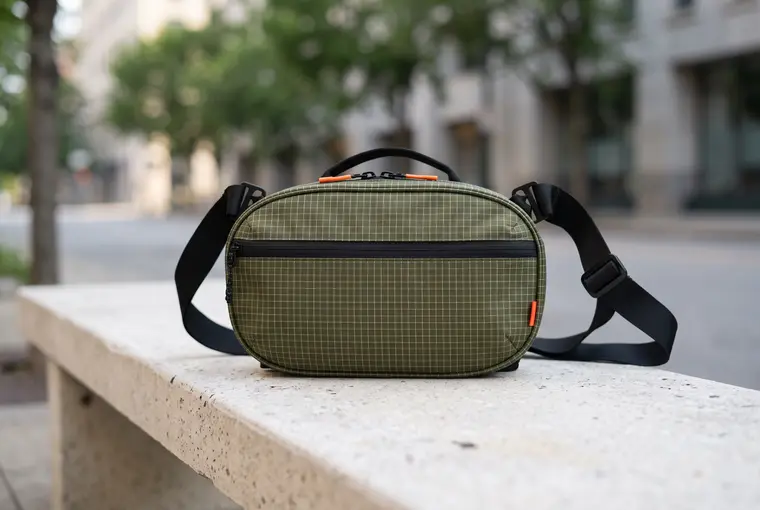
Step 1: Press Render, then change the scene
Render captures the 3D view and puts the bag in the scene you pick. Change the scene and run it again: the same bag, somewhere else.
- Scene
- Studio
- Shape
- 3:2
- Scene
- Urban street
- Surface
- Concrete
- Scene
- Cafe
- Surface
- Wood
- Scene
- Your own words
- Prompt
- On a shelf in a bright shop
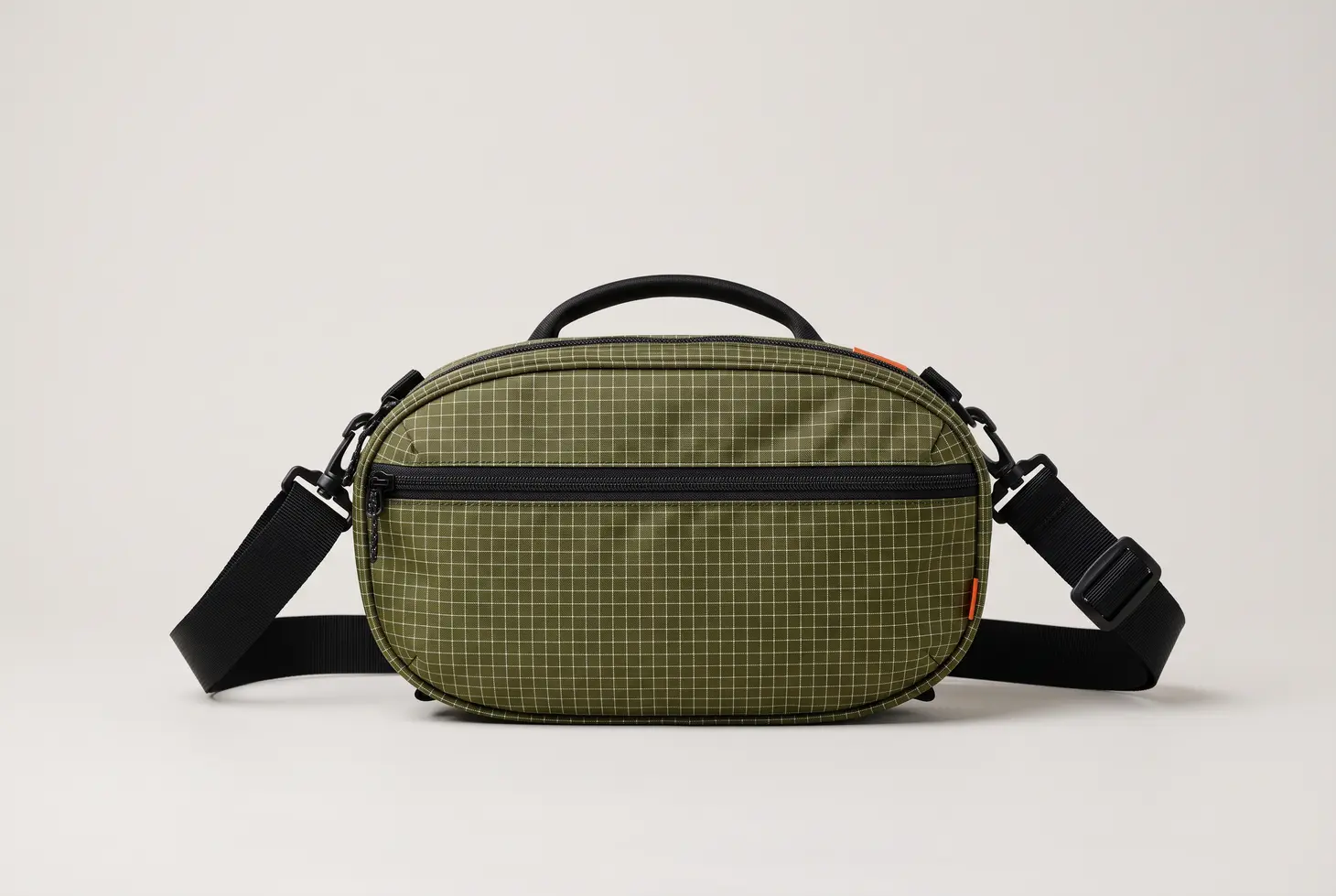
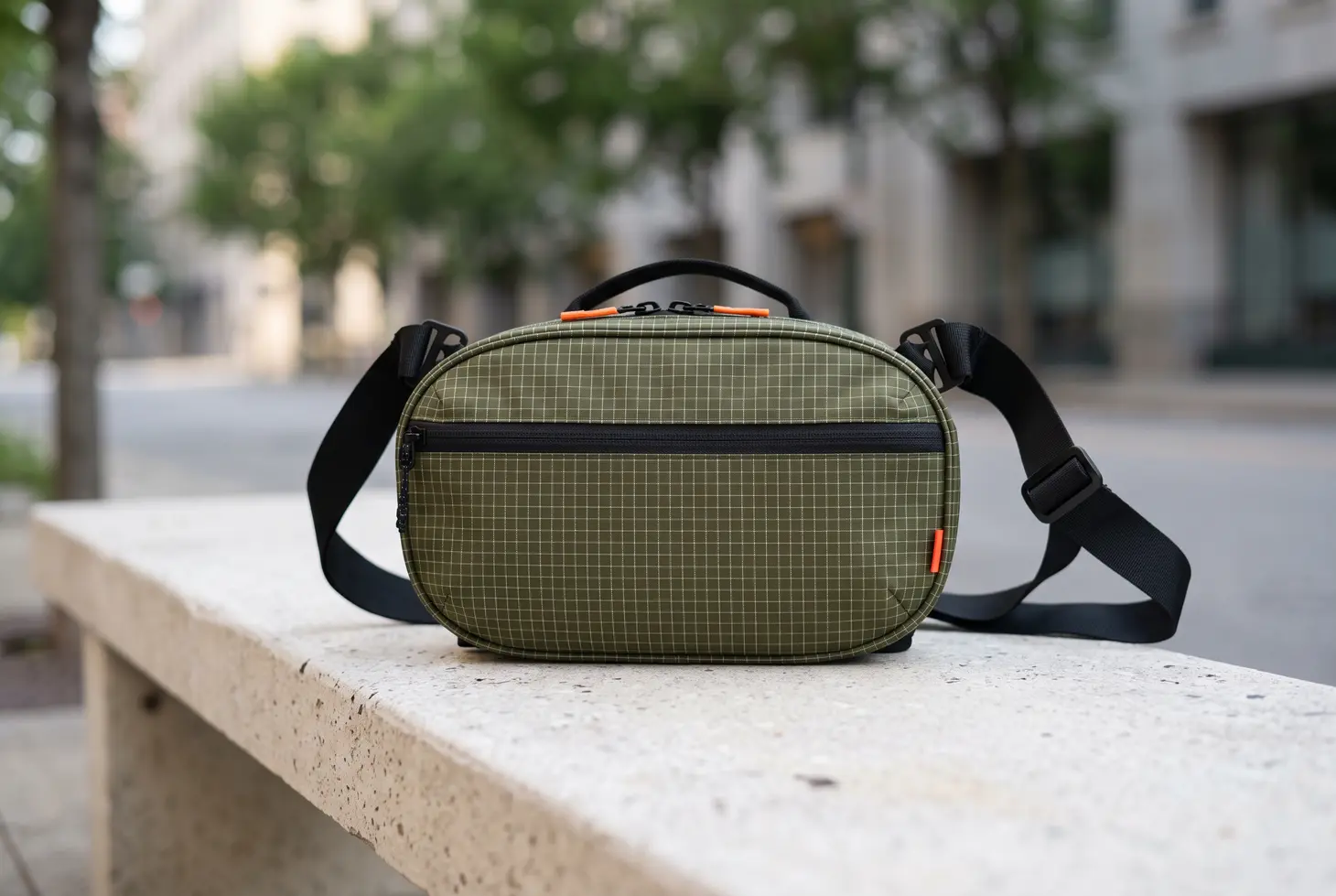
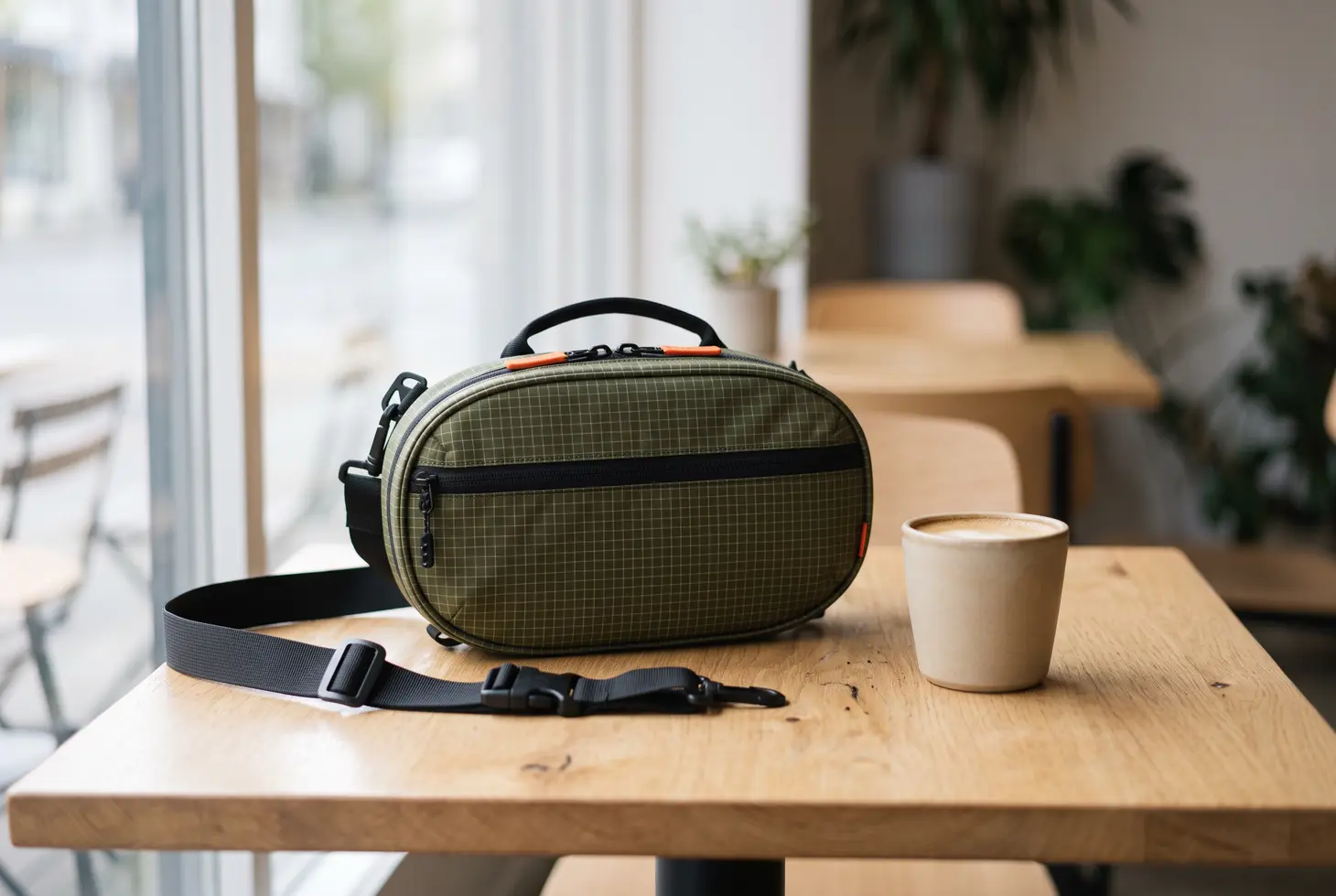
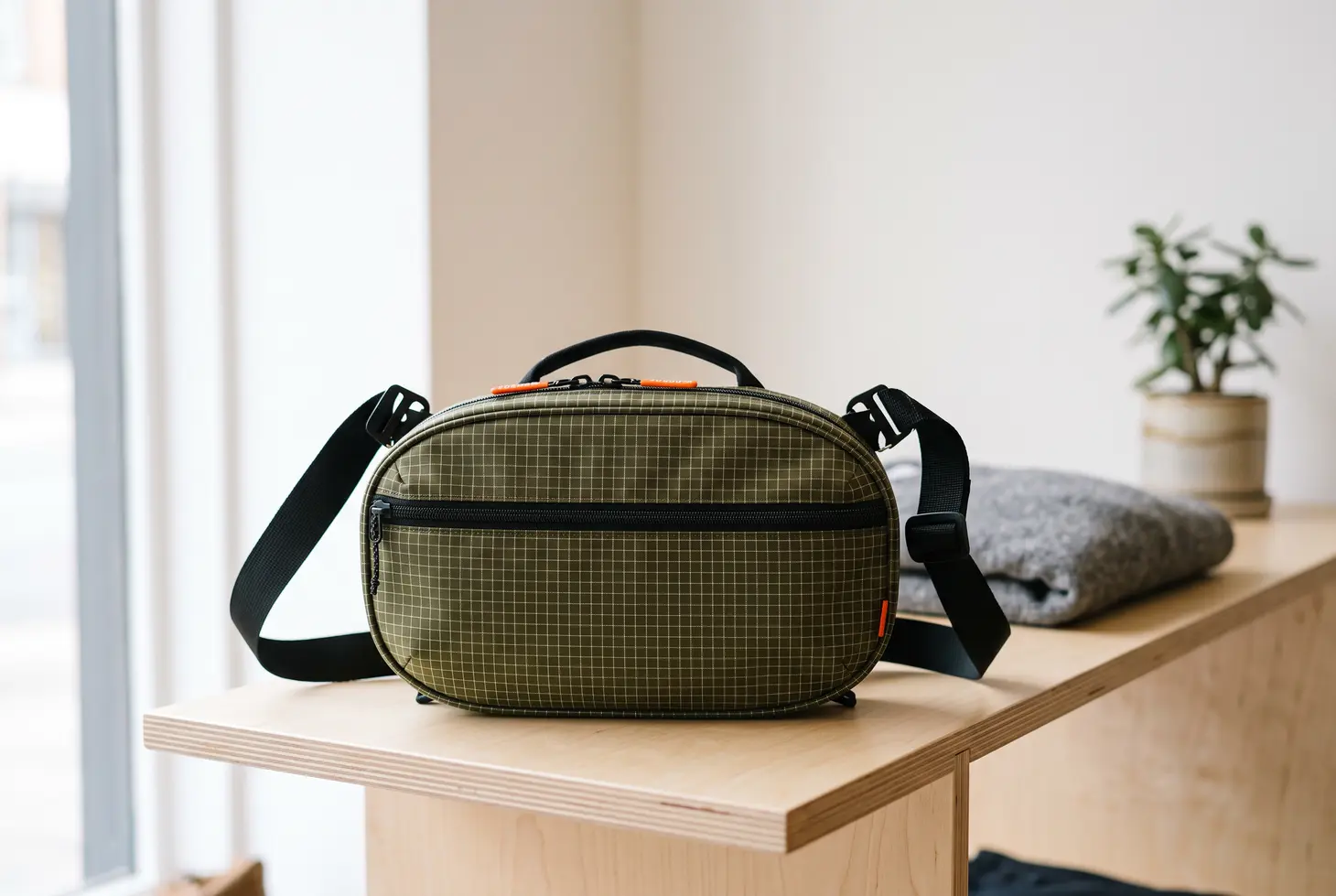
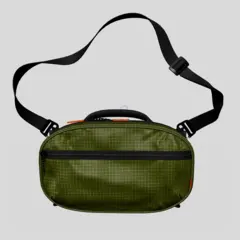 From the 3D view
Step 2: Show the other color
Pick another fabric and strap in the 3D view and run the same scene. Each option you sell can have a picture of its own.
- Base bag
- Gridstop Olive
- Strap
- Flat strap
- Base bag
- Ultraviolet
- Strap
- Rope and carabiner, Citrus
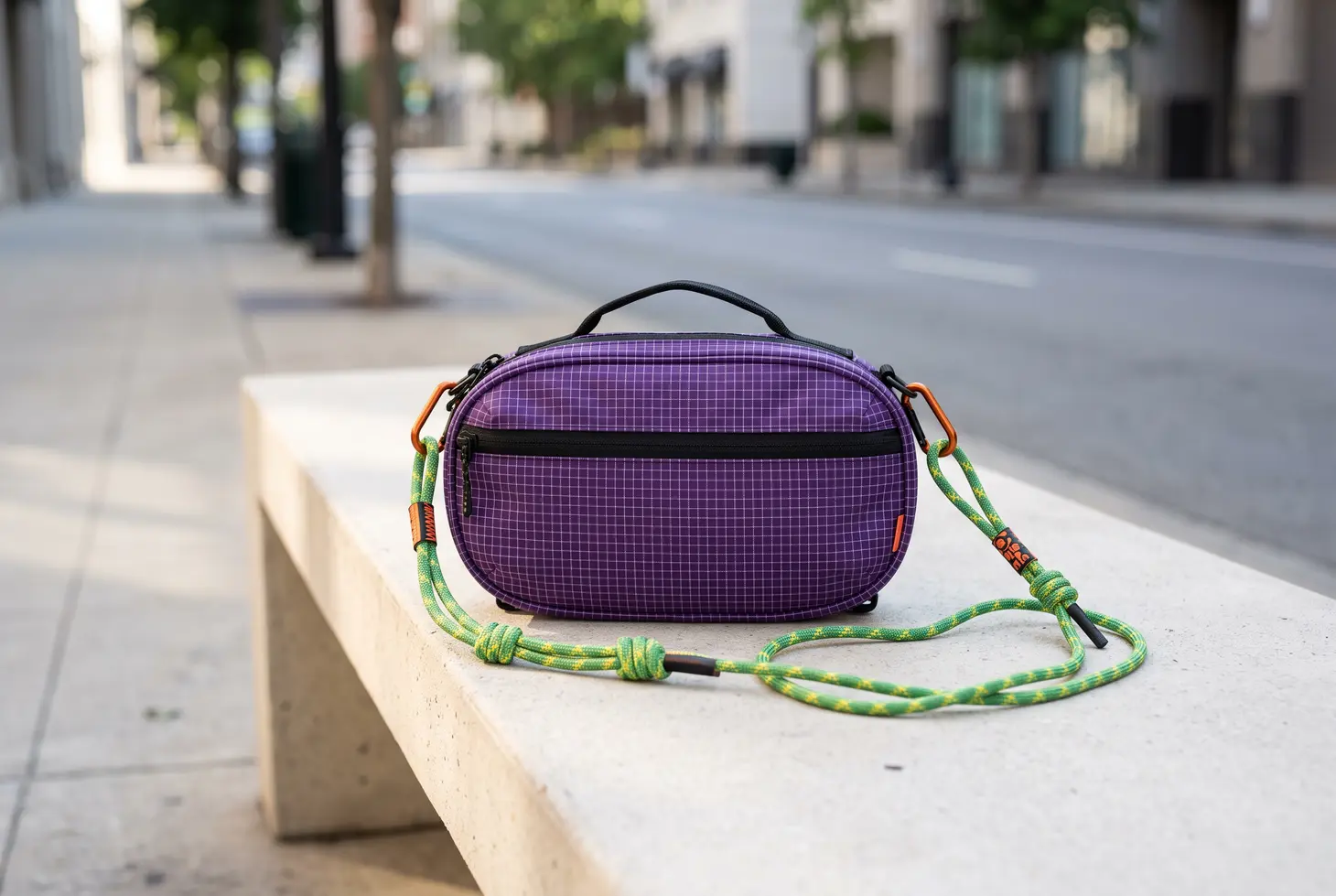 From the 3D view
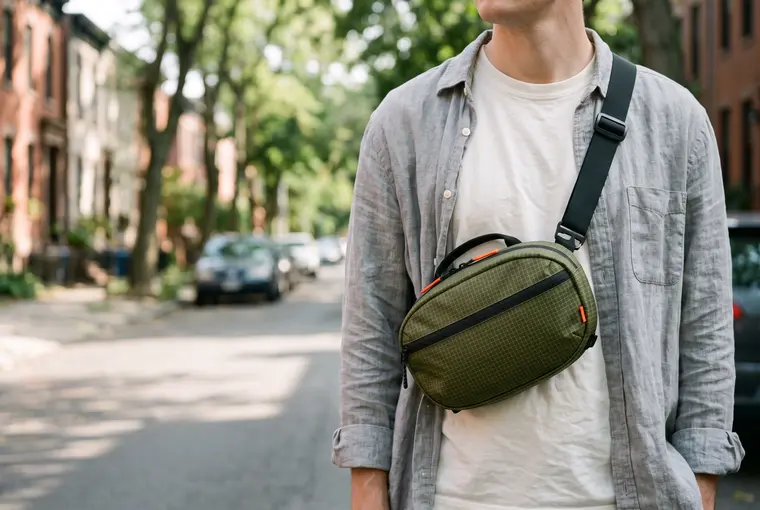
Step 3: Show it on a person
Try-On shows the product worn, in a setting you choose, so a visitor sees its size and how it sits.
- Tool
- Try-On
- Background
- Urban street
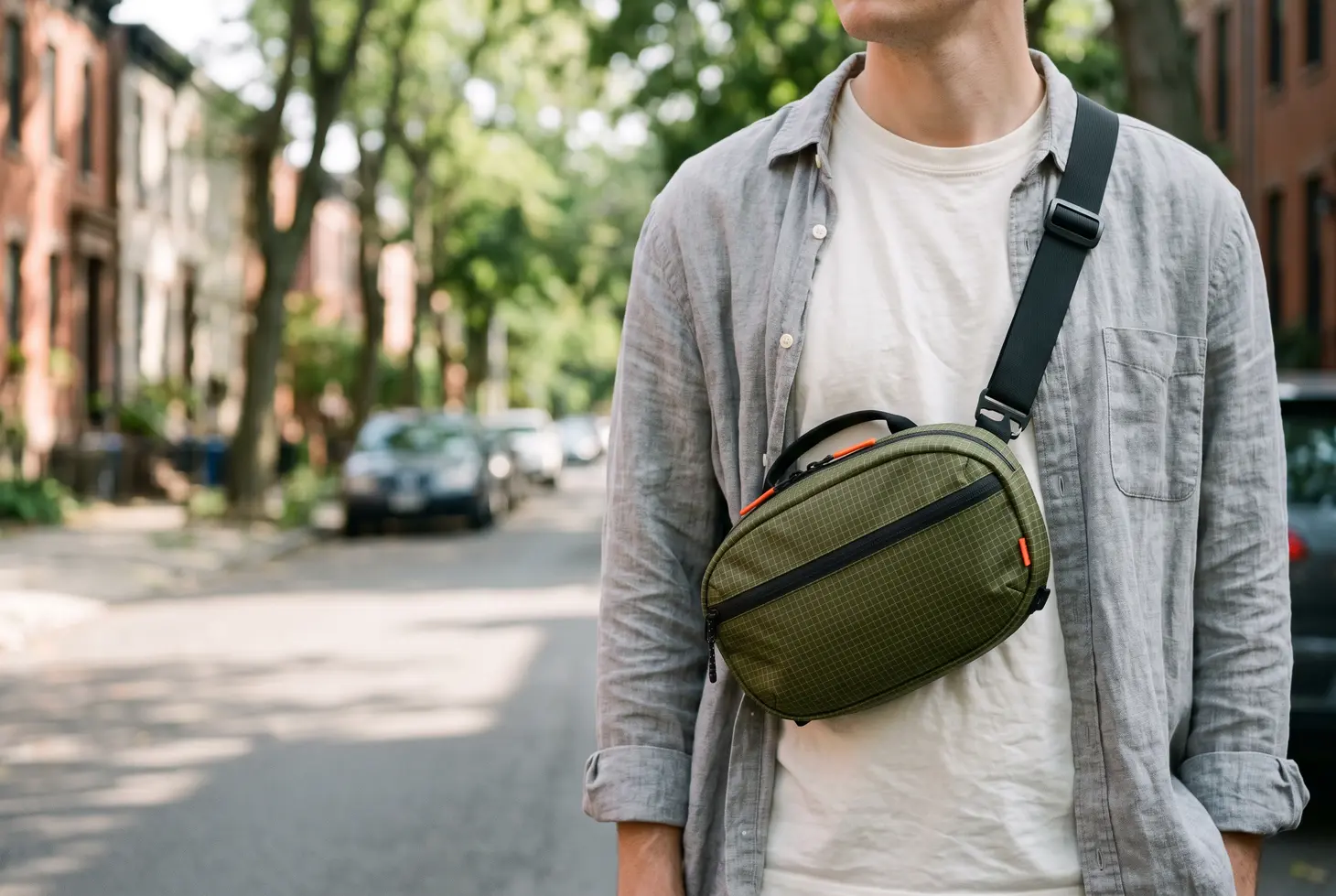
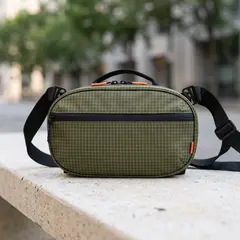 From the first picture
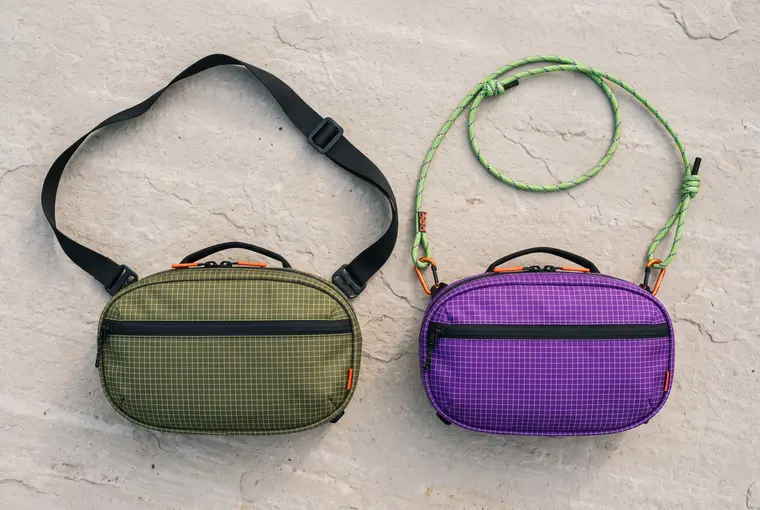
Step 4: Both colors in one picture
Multi-Bundle arranges two to four of your pictures into one. Here both bags are laid flat, side by side.
- Tool
- Multi-Bundle
- Layout
- Flatlay
- Mood
- Minimalist
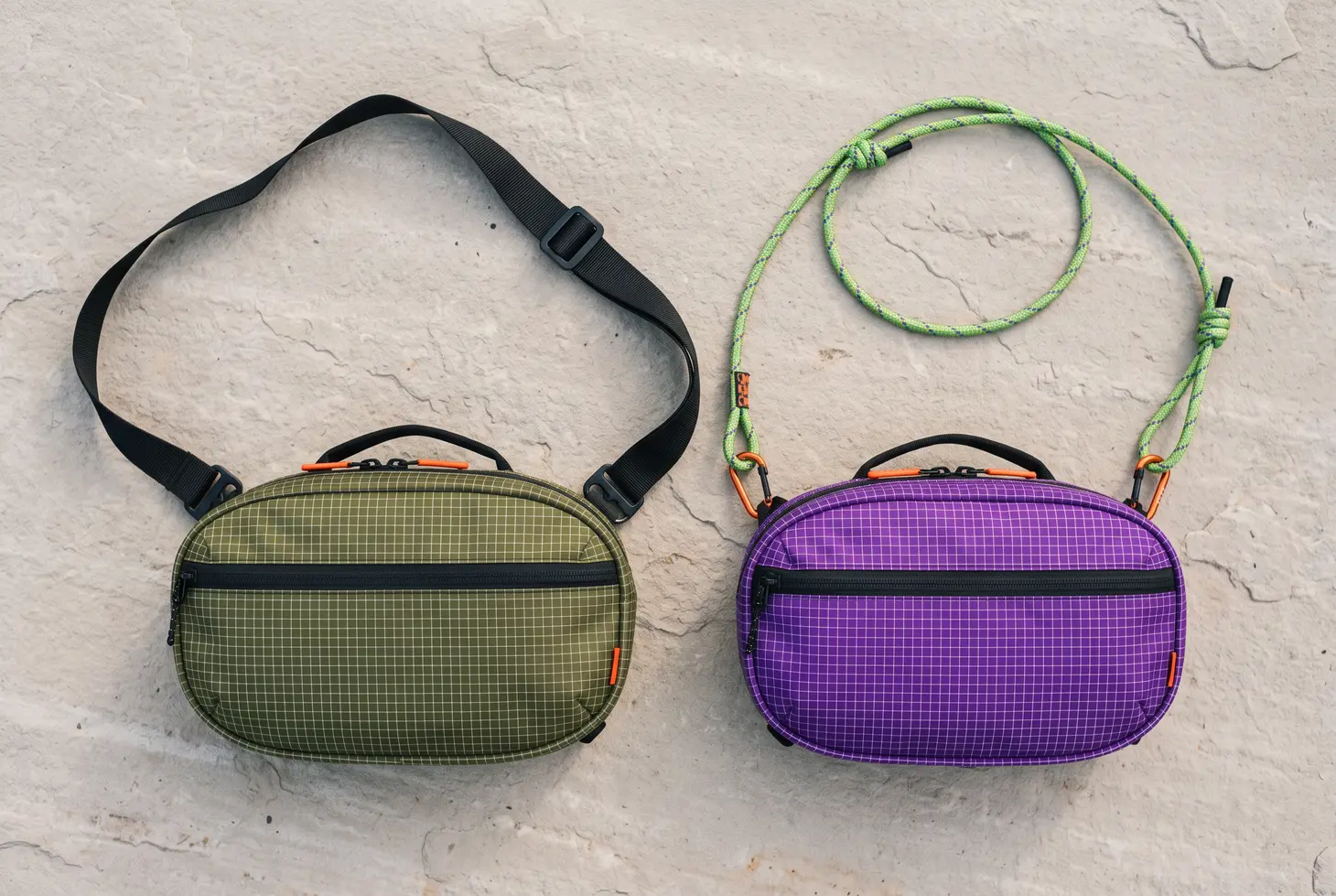
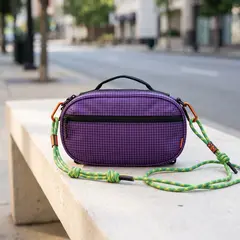 From two pictures
Step 5: Ready for every ad format
Ad Creator takes your headline and button text and fits the picture to the place it will run.
- Style
- Instagram Story
- Headline
- Build your own sling.
- Button
- Start building
- Style
- Instagram Post
- Headline
- Build your own sling.
- Button
- Start building
- Style
- YouTube Thumbnail
- Headline
- Build your own sling.
- Button
- Start building
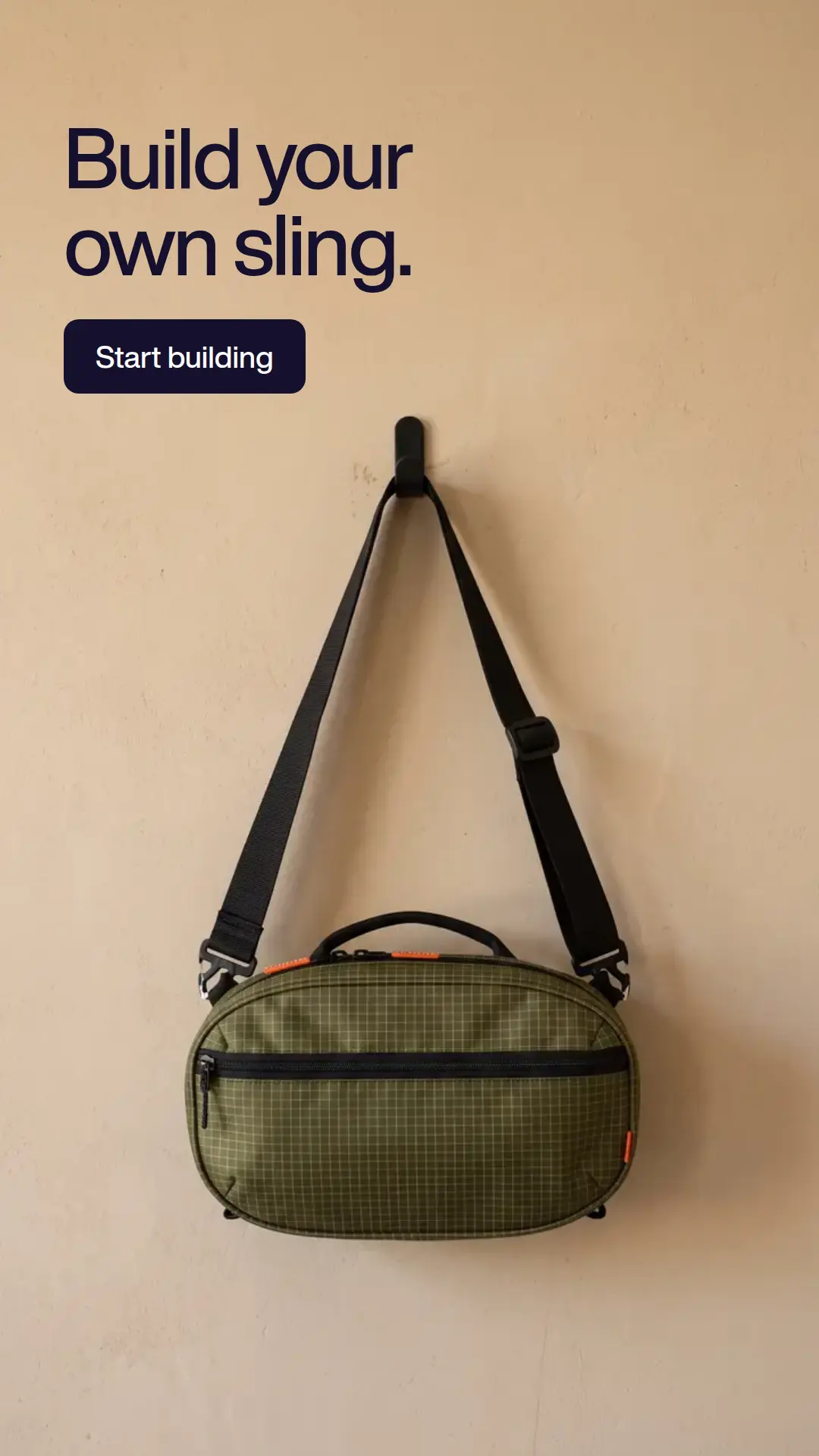
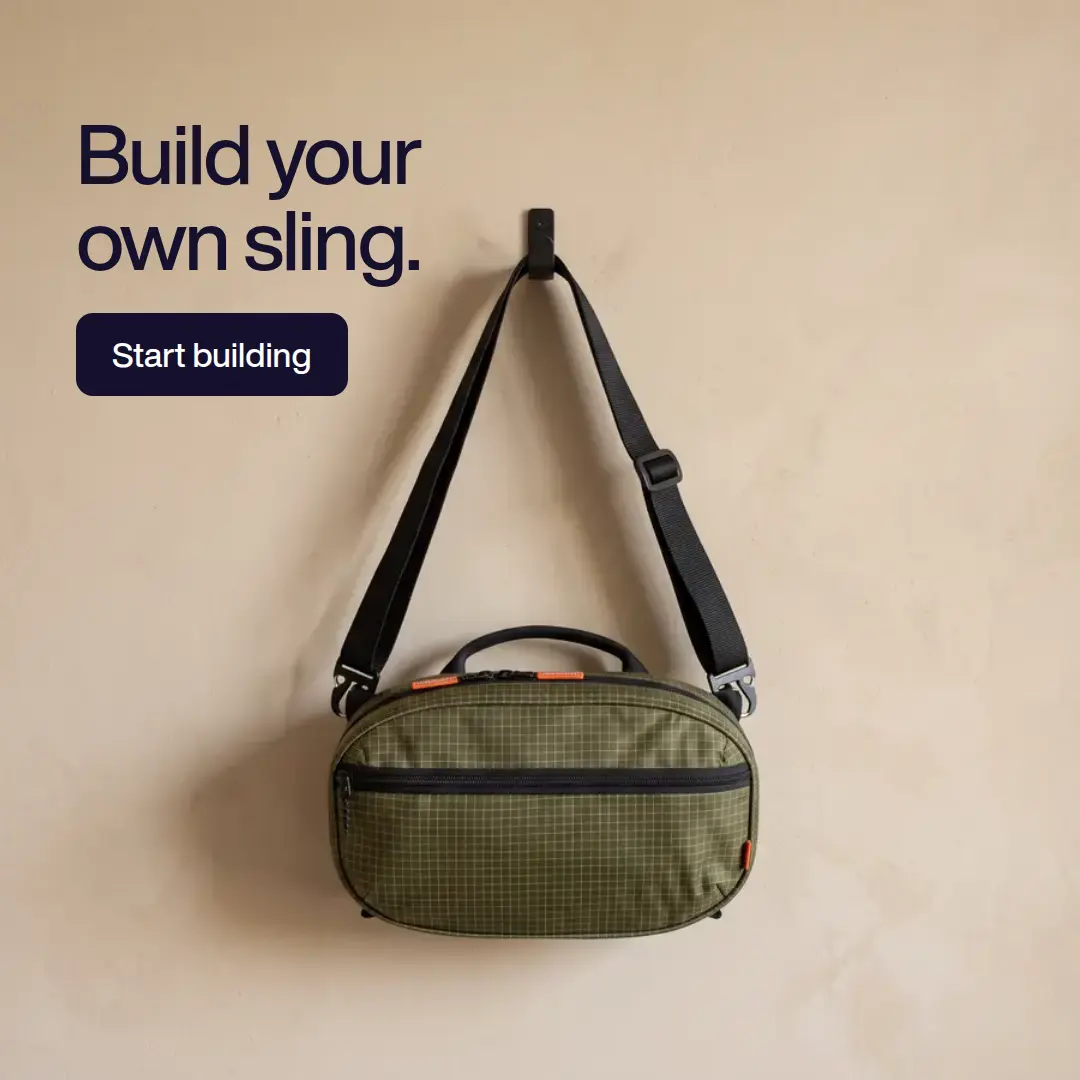
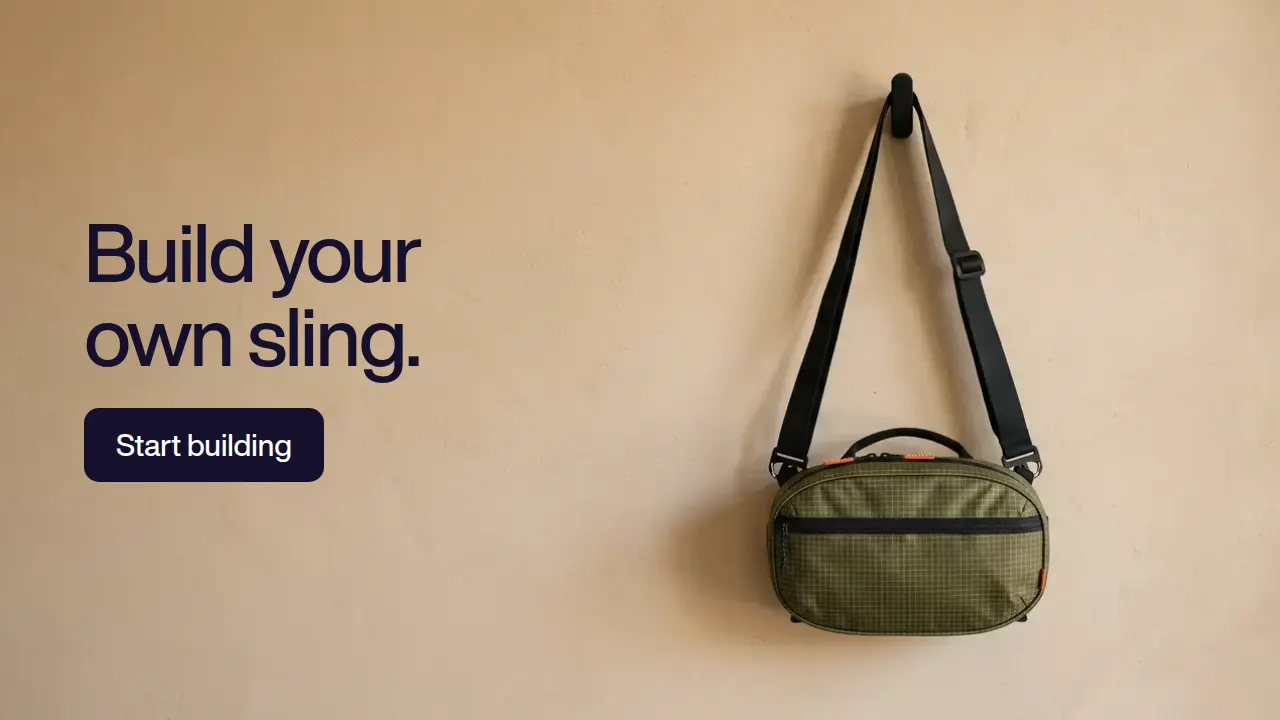 From the 3D view
Step 6: A short clip from one picture
Product Video turns any picture into a clip of up to 15 seconds: a slow turn, a pan, or a person walking.
- Tool
- Product Video
- Animation
- Model walking
- Length
- 5 seconds
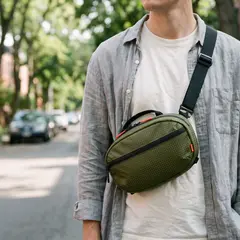 From the Try-On picture
AI Studio questions
Short answers to what stores ask first.
What do I need to start?
A product in Amaspace as a 3D model, published. AI Studio opens from that product. No model yet? We set up your first product with you. Send us your product
Does the picture show the product I sell?
It starts from your own 3D product in the options you picked, not from a description. You see every result before you use it, and you can run it again.
Where can I use the pictures and clips?
On product pages, in ads and on social: square, wide or tall, as the place needs.
Which plan includes AI Studio?
It is included from the Store plan. See the plans
Can it make a 3D model from my photos?
That is a different tool, One-click 3D, and it is in early access. See One-click 3D
Start with one product
Start for free, or send us a product from your store and we’ll set it up with you.